

In a world where distractions lurk around every corner, keeping your iPhone search results safe from the curious eyes of little ones or nosy friends is a top priority. Enter SafeSearch: the unsung hero of parental control that ensures your browsing remains as innocent as a kitten playing with yarn. But how do you lock it down?
Understanding SafeSearch on iPhone
SafeSearch is a crucial feature designed to filter explicit content from search results on iPhones. It empowers users to create a safer browsing environment, especially for children. This tool prevents access to inappropriate websites and helps filter out adult content in images and videos relevant to search queries.
Using SafeSearch effectively ensures that search engines return family-friendly results. This feature can significantly reduce exposure to potentially harmful online material. Enabling SafeSearch fosters a more responsible digital interaction for younger users.
Adjusting this setting can occur within the iPhone’s settings or through specific search engine preferences. For instance, Google, Bing, and Yahoo each offer distinct SafeSearch options. He or she must navigate to their preferred search engine’s settings to enable or adjust this feature.
Factors like location and search history might influence SafeSearch results. Users must remember that SafeSearch operates based on algorithms, which constantly evolve to improve filtering. Consequently, dedication to regularly checking settings helps maintain appropriate search parameters.
SafeSearch can also serve as a valuable tool in educational settings. Parents and teachers often utilize this feature to maintain a distraction-free learning environment. They can feel confident knowing that learners will engage with safe and suitable content online.
By implementing SafeSearch, users take proactive steps toward a more secure online experience. Achieving online safety through this feature calls for awareness and consistent monitoring of settings across devices. Adapting to changes in technology and preferences strengthens protection against unwanted or harmful content.
Steps to Lock SafeSearch

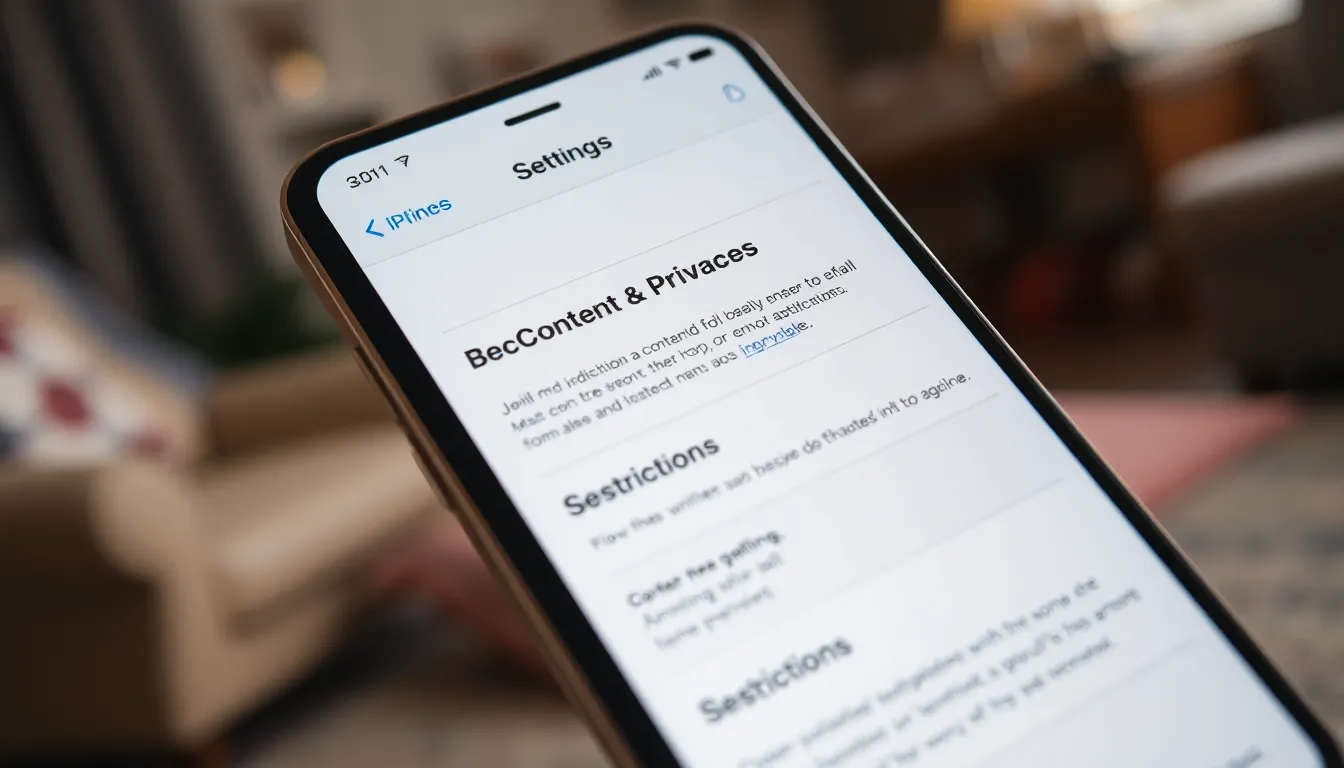
Locking SafeSearch on an iPhone ensures safer browsing, particularly for children. Follow these steps to set it up effectively.
Accessing Settings
Start by opening the “Settings” app on the iPhone. Scroll down and tap on “Screen Time.” This feature provides access to various parental controls. Next, look for “Content & Privacy Restrictions” and tap on it. If restrictions aren’t already enabled, turn on the switch at the top of the screen. Once activated, you can customize various safety settings, including SafeSearch options.
Enabling Restrictions
After accessing “Content & Privacy Restrictions,” select “Content Restrictions.” Here, a list of categories appears, including web content. Choose “Web Content,” which allows you to control internet access. Opt for “Limit Adult Websites” to filter explicit content automatically. This setting helps ensure a safer browsing environment for children and prevents unwanted access to inappropriate material.
Locking SafeSearch
To lock SafeSearch, navigate back to the “Content Restrictions” section. Locate the option for blocking inappropriate content within search settings. Toggle on “Require Password for Purchases” to add an extra layer of security. Additionally, ensure that “Limit Adult Websites” is set. This setup restricts explicit content across web browsers like Safari and Google. Regularly verify these settings to maintain consistent security and adapt as needed.
Benefits of Locking SafeSearch
Locking SafeSearch on an iPhone offers tangible advantages for users seeking a secure online environment. Enhanced security is a top benefit, as it actively blocks access to harmful sites. Users can limit exposure to potential threats, protecting themselves and their data. This feature greatly reduces the risk of encountering malware and phishing attempts, ensuring a more secure browsing experience.
Preventing inappropriate content ranks high among the benefits of SafeSearch. Children and young users especially benefit from this feature. It effectively filters explicit images and videos, making internet exploration safe. Websites containing adult content get automatically blocked, fostering a healthier online environment. SafeSearch shields users from unwanted exposure, promoting responsible internet usage.
Troubleshooting Common Issues
Users may encounter several issues while locking SafeSearch on their iPhones. Identifying and resolving these problems often ensures a smoother experience.
Restarting the iPhone can fix minor glitches related to settings. Some users report that changes to SafeSearch settings do not take effect until the device is restarted.
Inconsistent search results can occur due to location services. Disabling location services or clearing the browser cache may address this issue. Search results can sometimes depend on location-based data.
Accessibility features, like VoiceOver, might interfere with SafeSearch settings. Checking these settings ensures no conflicts arise during usage.
Accidental changes to “Screen Time” settings can also lead to difficulties. Navigating to “Settings,” selecting “Screen Time,” and reviewing restrictions helps maintain consistency in SafeSearch preferences.
If the content restrictions do not appear to work, updating the iOS is worth considering. Software updates often include bug fixes that enhance overall functionality.
Consulting search engine-specific settings may also provide clarity. Some browsers offer additional options for adjusting SafeSearch, affecting overall results.
Users experiencing persistent issues might consider resetting all settings. This action restores settings to default and often resolves conflicts.
Engaging with online support forums provides access to community insights. Many users share troubleshooting tips that can offer effective solutions.
Testing SafeSearch with various browsers can help identify specific problems. Browsers like Safari and Google might respond differently based on their specific configurations.
Locking SafeSearch on an iPhone is a vital step toward ensuring a secure and family-friendly browsing experience. By following the outlined steps users can effectively filter explicit content and create a safer online environment for children. Regularly checking and adjusting these settings is essential to adapt to evolving needs and maintain consistent protection.
With the right configurations in place users can significantly reduce the risk of exposure to inappropriate material. This proactive approach not only enhances security but also fosters a healthier digital landscape for young users. By prioritizing SafeSearch users can navigate the internet with confidence knowing they’ve taken important measures to safeguard their browsing experience.


